In our environment, a particular PC was having entirely random BSODs. It was initially thought to be bad RAM but replacing it with known good sticks did nothing. We started thinking that a driver could be the culprit: it could trigger the BSOD but be buried deep enough that the bugcheck report doesn’t point to it. That’s where Microsoft’s driver verifier came into play and how we discovered that it was the Citrix USB driver.
Caution!
The following describes somewhat advanced troubleshooting processes. Approach it with caution. I offer neither warranties nor guarantees that this will work.
With that out of the way, let’s get started!
(Optional) Enable Kernel memory dumps:
- Start Menu and type in “sysdm.cpl”
- Advanced tab, “Startup and Recovery” settings
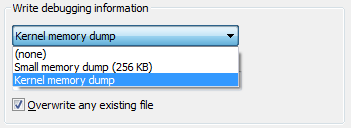
- Set the “write debugging information” to “Kernel memory dump”
Start and config Driver Verifier:
- Start Menu and type in “verifier” (run as Admin)
- Select “Create custom settings (for code developers)” and click “Next”
- Select “Select individual settings from a full list” and click “Next”
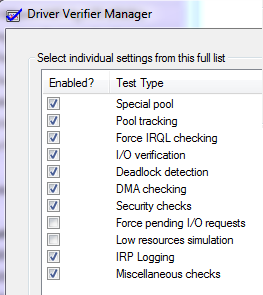
- Select everything EXCEPT FOR “Force Pending I/O Requests” and “Low Resource Simulation” and click “Next”
- Select “Select driver names from a list” and click “Next”
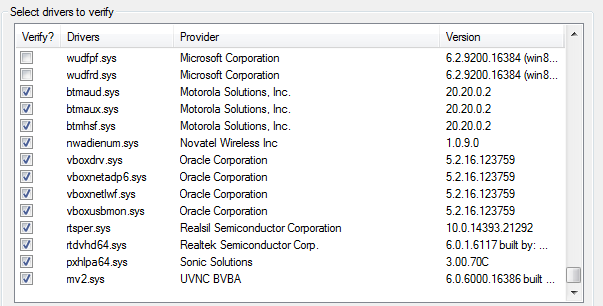
- Select all drivers NOT provided by Microsoft and click “Next” (sort by provider to make it easier)
- Select “Finish” on the last page.
Wait for a BSOD
Reboot the system. If the BSOD happens immediately, boot into safe mode and copy the crash dump. Find the crash dumps in either:
- C:\Windows\MEMORY.DMP
or,
- C:\Windows\Minidump\mmddyy-PID-##.dmp
Head over to my other article, WinDBG and BSOD/Crash Dumps, for some information on installing WinDBG and running an analysis.
If the BSOD isn’t immediate, have the end user use the system as normal. There will be system slowness from Windows stressing the drivers so it’s important to disable the driver Verifier after the BSOD and subsequent analysis.
Disable Driver Verifier (return to normal)
- Start Menu and type in “verifier” (run as Admin)
- Select “Delete existing settings” and click “Finish”
Supporting this site
The apps and scripts available here are free-ish. Here at GB/2 Labs, we really like the idea of Pay What You Want. If you find this post useful (or need some support), send what you feel the functionality (or support time) is worth to you or your organization. If your business requires it, contact us for a proper invoice. Otherwise, please consider a donation below.
Make a one-time donation
Choose an amount
Or enter a custom amount
Your contribution is appreciated.
DonateIf you’d like to send cryptocurrency (Bitcoin, Dogecoin, or Ethereum/US Dollar Coins/US Dollar Tether), see the addresses below.
BTC: 3JKbb5uATkxHHhYSqg49jBq8ykRXLjEHsF
DOGE: D96UZpWWQfDWW4u7DZKZCGCoWVsw6qGFFK
ETH/USDC/USDT:0x9356528d2b820426F6D82F4787724472232c097c
(Please note that ETH/USDC/USDT only support the ETH/ERC20 networks!)
 rsn
rsn 